In today’s digital landscape, web and mobile applications dominate discussions about software development. However, desktop applications remain critical components of our computing experience, offering unique advantages in performance, functionality, and user experience. Whether you’re a novice programmer taking your first steps into development or an experienced developer looking to expand your toolkit, this comprehensive guide will navigate you through the multifaceted world of desktop application development.
Introduction: Why Desktop Applications Still Matter
Despite the surge in web and mobile technologies, desktop applications continue to thrive for several compelling reasons:
- Performance: Desktop applications can leverage the full processing power of a computer’s hardware, making them ideal for resource-intensive tasks like video editing, 3D modeling, and data analysis.
- Offline Functionality: They can operate without an internet connection, ensuring consistent access to tools and data.
- System Integration: Desktop apps can interact deeply with operating systems, accessing file systems, hardware, and other local resources.
- Security: Sensitive data can remain on local systems rather than being transmitted over networks.
- User Experience: They can provide responsive interfaces and advanced features that may be challenging to implement in web applications.
As we embark on this developmental journey, we’ll explore not just the how but also the why behind every decision, equipping you with the knowledge to create desktop applications that stand the test of time.
1. Understanding Desktop Application Architecture
The Fundamentals of Desktop Applications
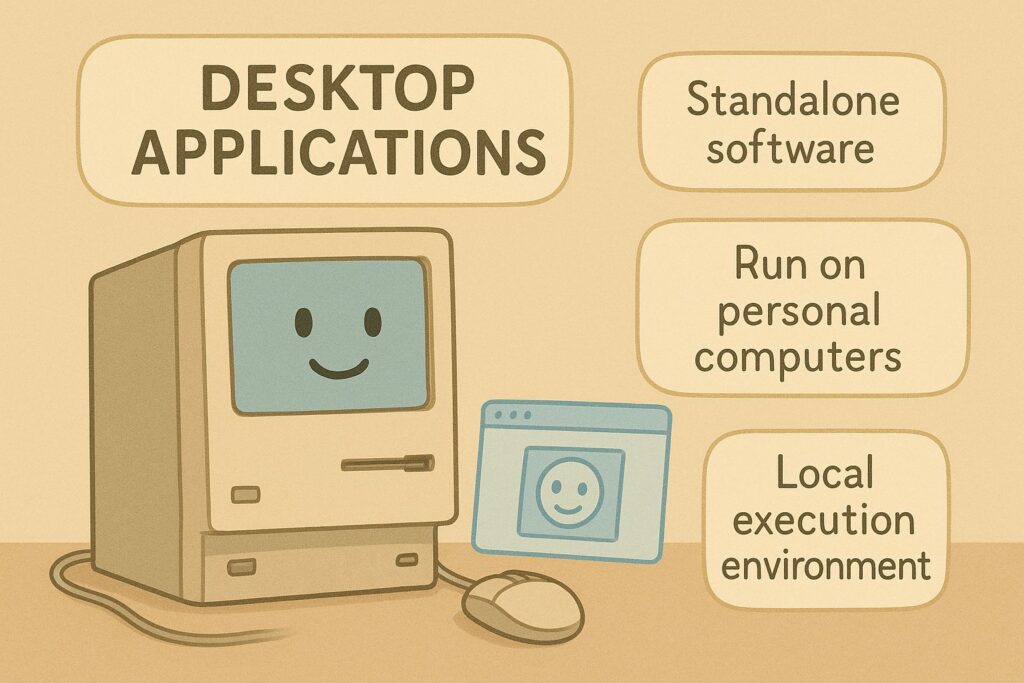
Desktop applications are standalone software programs designed to run on personal computers or laptops, distinguishing themselves from web applications that operate within browsers. They’re installed directly on the user’s device, creating a local execution environment that offers several distinct advantages:
- Direct OS interaction: Desktop apps can communicate directly with the operating system’s APIs, accessing hardware resources, file systems, and system services.
- Local resource utilization: They leverage local processing power, memory, and storage, enabling complex computations and data handling.
- Rich user interfaces: Desktop applications can implement sophisticated UIs with native controls and custom visualizations.
Core Components of Desktop Application Architecture
Modern desktop applications typically consist of several interconnected components:
- Presentation Layer (UI): The visual interface that users interact with, containing windows, dialogs, forms, and controls.
- Application Logic Layer: The core functionality that processes user inputs, handles events, and implements business rules.
- Data Access Layer: Manages communication with local or remote data sources, handling storage and retrieval operations.
- Service Layer: Optional components that handle background processing, system services integration, or communication with external systems.
Architectural Patterns for Desktop Applications
Several architectural patterns have evolved to structure desktop applications effectively:
- Model-View-Controller (MVC): Separates application logic (Model) from user interface (View) with a Controller that mediates between them.
- Model-View-ViewModel (MVVM): Popular in WPF and other modern frameworks, MVVM introduces a ViewModel that handles view state and commands while maintaining separation of concerns.
- Model-View-Presenter (MVP): Variation of MVC where the Presenter assumes responsibility for UI logic, making views as passive as possible.
Understanding these architectural concepts is crucial as they influence both the development process and the long-term maintainability of your application.
2. Choosing the Right Programming Language and Framework
When embarking on a desktop application development journey, one of the most pivotal decisions you’ll face is selecting the technology stack that will form the foundation of your project. This choice isn’t just a technical preference—it’s a strategic decision that will impact everything from development speed and application performance to cross-platform compatibility and the skill sets required from your team members. In today’s post, I’ll walk you through the considerations for choosing programming languages and frameworks that align with your project goals, helping you make informed decisions that will set your desktop application up for success.
Choosing a programming language for desktop development requires balancing several factors including performance needs, development speed, platform requirements, and team expertise. Let’s explore some popular options and see how they stack up against real-world development scenarios.
Java: The Write-Once-Run-Anywhere Champion
Java has maintained its position as a cornerstone of cross-platform development for decades, and for good reason. When you develop with Java, the Java Virtual Machine (JVM) acts as an intermediary between your code and the operating system, enabling true platform independence that few other languages can match.
This platform agnosticism makes Java particularly valuable for organizations developing business applications that need to run consistently across diverse environments. The robust standard library and mature ecosystem mean you’ll rarely find yourself reinventing the wheel—most common functionality is readily available through established libraries or frameworks. Additionally, Java’s strong typing and comprehensive object-oriented programming support promote code organization and maintainability, crucial factors for enterprise applications that may evolve over many years.
However, Java isn’t without its tradeoffs. The very JVM that enables cross-platform compatibility introduces a performance overhead that may be noticeable in resource-intensive applications. Java desktop applications also sometimes struggle to perfectly match the look and feel of native applications, giving them a slightly “foreign” appearance on some platforms. The memory footprint tends to be larger than what you’d see with lower-level languages like C++, which could be a consideration for applications targeting resource-constrained environments.
C# and .NET: Microsoft’s Powerhouse Evolving Beyond Windows
If your development targets primarily Windows environments or your team has Microsoft ecosystem experience, C# with .NET deserves serious consideration. C# offers a modern, elegant syntax with regular language updates that keep it at the cutting edge of programming paradigms. When paired with Visual Studio, arguably one of the most powerful IDEs available, the development experience is remarkably streamlined.
Traditionally, C# has been associated exclusively with Windows development, but this limitation has been dramatically reduced with the introduction of .NET Core (now .NET 5 and beyond), which brings genuine cross-platform capabilities to the C# ecosystem. This evolution means you can increasingly leverage C# skills across more diverse deployment targets.
The language shines particularly bright for enterprise software and business tools where its robust type system and excellent tooling support help manage complexity in large codebases. The learning curve is steeper than languages like Python, but the productivity gains for complex applications often justify the initial investment in skill development.
Python: Where Simplicity Meets Versatility
Python has exploded in popularity across many domains, and desktop application development is no exception. The language’s exceptional readability and straightforward syntax dramatically reduce the time from concept to functional prototype, making it ideal for rapid development cycles or projects with tight deadlines.
Where Python truly stands out is in specialized applications like scientific computing, data analysis, or AI-powered tools. Libraries such as NumPy, Pandas, and TensorFlow give Python developers extraordinary capabilities with minimal coding effort. The gentle learning curve also makes Python an excellent choice for teams with mixed programming experience levels or for domain experts who need to contribute to development without extensive programming backgrounds.
The tradeoff comes in performance and packaging. Computationally intensive operations will generally run slower in Python compared to compiled languages, though this can often be mitigated through optimized libraries with C/C++ underpinnings. Creating standalone, professional-looking desktop applications with Python also requires additional work compared to frameworks specifically designed for GUI applications, though tools like PyInstaller have simplified this process considerably.
C++: The Performance King with a Learning Curve
For applications where performance is paramount—think video editing software, CAD programs, or games—C++ remains the gold standard. The language gives developers exceptional control over system resources, enabling precise memory management and direct hardware access that can make the difference between sluggish and snappy performance in demanding applications.
This power comes with responsibility, however. C++ has one of the steeper learning curves among mainstream programming languages, particularly when it comes to memory management and complex language features. Development cycles are typically longer, and the potential for introducing subtle bugs is higher compared to languages with automatic memory management.
Despite these challenges, C++ remains irreplaceable for performance-critical applications or software that needs to interface directly with hardware components. When execution speed and resource efficiency are non-negotiable requirements, the additional development complexity of C++ is often a worthwhile investment.
JavaScript with Electron: Web Development Skills Repurposed
The rise of Electron and similar frameworks has revolutionized desktop development by enabling web developers to apply their existing skills to create cross-platform desktop applications. Using the same technologies that power modern websites—HTML, CSS, and JavaScript—developers can build desktop experiences with remarkably little platform-specific code.
This approach offers several compelling advantages: web developers can transition to desktop development with minimal additional learning, the vast npm ecosystem is immediately accessible, and cross-platform support is built in from the ground up. The iterative development cycle is also typically faster than traditional desktop development, allowing for rapid prototyping and frequent releases.
The main drawbacks revolve around resource efficiency. Electron applications bundle an entire Chromium engine, leading to larger application sizes and higher memory consumption compared to native alternatives. This tradeoff is often acceptable for business applications, developer tools, or content-focused software, but may be problematic for resource-intensive scenarios or deployment to older hardware.
GUI Frameworks: Building the Face of Your Application
Once you’ve settled on a programming language, selecting the right GUI framework becomes your next critical decision. This choice determines not just how your application looks, but how it interacts with users and how efficiently you can implement complex interface requirements.
JavaFX: Modernizing Java UI Development
JavaFX represents a significant evolution from earlier Java UI technologies like Swing, bringing modern capabilities like CSS styling, rich UI controls, and even 3D rendering to the Java ecosystem. The scene graph architecture provides efficient rendering, while FXML allows for clean separation between UI design and application logic—a boon for larger projects with dedicated designers and developers.
For teams already invested in Java development who need to create visually appealing, content-rich interfaces, JavaFX offers a natural path forward without needing to adopt an entirely new language. However, complex applications can face a learning curve, and deployment has historically been more complicated than with some alternatives, though recent improvements have addressed many of these concerns.
WPF: Rich Windows Applications with XAML
Windows Presentation Foundation (WPF) remains the premium choice for Windows-focused applications requiring sophisticated user interfaces. Its XAML-based approach to UI definition creates a clean separation between design and code, while its comprehensive data binding system dramatically simplifies the implementation of the Model-View-ViewModel (MVVM) pattern.
The framework’s resolution independence and vector-based rendering ensure your application looks crisp on high-DPI displays, while the extensive styling and template system enables dramatic visual customization without sacrificing functionality. These capabilities make WPF particularly well-suited for data visualization applications, document processing tools, and any software where a polished, modern Windows-native experience is a priority.
The primary limitation is platform support—WPF is specifically designed for Windows and doesn’t offer cross-platform capabilities. Additionally, complex WPF applications can be resource-intensive, which may be a consideration for deployment to lower-spec machines.
Qt: True Cross-Platform Native Interfaces
When genuine cross-platform capability with native performance is non-negotiable, Qt stands out as a mature, comprehensive solution. Available primarily for C++ but with excellent Python bindings through PyQt or PySide, Qt provides a consistent API that adapts to deliver native look and feel across Windows, macOS, Linux, and even mobile platforms.
Beyond its impressive widget set, Qt offers integrated solutions for common application requirements like internationalization, threading, and network access. The signal/slot mechanism for event handling provides a clean, decoupled approach to component communication that promotes maintainable architecture.
The main considerations with Qt involve licensing (there are both commercial and open-source options with different terms) and the learning curve associated with C++ development, though the latter is significantly mitigated when using Python bindings. For organizations committed to delivering truly native experiences across multiple desktop platforms, these tradeoffs are often well worth it.
Electron: Web Technologies for the Desktop
Electron has democratized desktop application development by enabling web developers to create desktop applications using familiar HTML, CSS, and JavaScript. This approach has gained tremendous popularity, powering well-known applications like Visual Studio Code, Slack, and Discord.
The framework provides access to both browser APIs for UI rendering and Node.js capabilities for file system access and other system-level operations. This dual-runtime approach creates a uniquely powerful development environment where web skills directly translate to desktop functionality, and the vast ecosystem of npm packages is immediately available.
The primary concerns with Electron revolve around resource usage—applications typically consume more memory than native equivalents and include a bundled Chromium engine that increases application size. For many modern use cases, particularly business applications, productivity tools, and content-focused software, these tradeoffs are acceptable given the dramatic improvement in development efficiency and cross-platform compatibility.
Tkinter: Python’s No-Frills UI Solution
For Python developers seeking straightforward UI implementation without additional dependencies, Tkinter offers an immediately accessible solution included in the Python standard library. Its API is remarkably simple for basic applications, making it ideal for utility tools, quick prototypes, or educational software where functionality takes precedence over visual sophistication.
While Tkinter applications can run across platforms, the framework shows its age in terms of visual appearance and advanced capabilities. Applications requiring modern UI elements, complex layouts, or sophisticated user interactions will likely outgrow Tkinter’s capabilities, but for simpler tools—especially internal utilities or educational software—its simplicity and zero-dependency nature remain compelling advantages.
Making Your Decision: Practical Considerations
When navigating these choices for your specific project, consider these practical factors:
- Team expertise: Leveraging your team’s existing skills often yields better results than adopting an unfamiliar technology, even if the latter appears technically superior on paper.
- Project timeline: Some language/framework combinations enable much faster development cycles, which may be crucial for projects with tight deadlines.
- Long-term maintenance: Consider not just what’s easiest to build, but what will be maintainable years down the road, potentially by developers who weren’t part of the original team.
- Platform requirements: Be realistic about which platforms you genuinely need to support now and in the future.
- Performance profile: Identify the performance-critical aspects of your application and ensure your chosen technology can meet those specific demands.
The desktop development landscape offers more viable options than ever before, each with distinct strengths. By aligning your technology choices with your specific project requirements and constraints, you’ll establish a solid foundation for desktop application success.
What programming language and framework combinations have you found most effective for desktop development? Share your experiences in the comments below!
Making the Right Choice: Decision Framework
When selecting a programming language and framework, consider these factors:
- Target Platforms: Which operating systems must your application support?
- Performance Requirements: How resource-intensive is your application?
- UI Complexity: How sophisticated does your interface need to be?
- Team Expertise: What technologies does your team already know?
- Development Timeline: How quickly must you deliver the application?
- Long-term Maintenance: Who will maintain the application, and what are their skills?
- Integration Requirements: What systems must your application communicate with?
This decision matrix can help prioritize these factors for your specific project:
| Factor | High Importance | Medium Importance | Low Importance |
|---|---|---|---|
| Cross-platform | Electron, Qt | Java, Python | WPF, .NET MAUI |
| Performance | C++, .NET | Java | Electron, Python |
| Modern UI | WPF, Electron, Qt | JavaFX | Tkinter |
| Development Speed | Python, Electron | C#, Java | C++ |
| Team with Web Skills | Electron | Python | C++, C# |
| Native OS Integration | C# (Windows), Swift (macOS) | Qt | Electron |
3. Setting Up Your Development Environment
Have you ever noticed how some developers seem to effortlessly glide through their coding sessions, while others struggle with constant interruptions and technical hiccups? The difference often comes down to having a well-configured development environment. In my years of desktop application development, I’ve found that the right setup doesn’t just save time—it transforms the entire development experience from frustrating to fulfilling. Let’s explore how to create an environment that will supercharge your desktop application development workflow.
Why Your Development Environment Matters
Before diving into specific tools, it’s worth understanding why your environment is so critical. A thoughtfully configured workspace eliminates cognitive friction—those small annoyances and interruptions that break your flow state. When your tools work seamlessly together, you spend less time fighting with your setup and more time solving actual problems. This translates directly into increased productivity, higher-quality code, and, perhaps most importantly, a more enjoyable development experience.
Think of your development environment as a craftsperson’s workshop. Just as a carpenter carefully arranges their tools for efficiency and keeps them well-maintained, you should approach your digital workspace with the same intentionality.
The Foundation: Choosing the Right IDE
At the heart of any development environment lies the Integrated Development Environment (IDE)—your primary interface with the code. The right IDE for your project can dramatically accelerate your workflow through features like intelligent code completion, integrated debugging, and framework-specific tooling.
For .NET and C# development, Visual Studio stands as the premier choice. Microsoft’s flagship IDE offers unparalleled integration with the .NET ecosystem, comprehensive debugging tools, and powerful features like IntelliSense that can predict what you’re trying to accomplish. The robust extension marketplace further allows you to customize the environment to your specific needs. While the Professional and Enterprise editions offer additional features, the Community edition provides a remarkably complete feature set for individual developers and small teams.
Java developers typically gravitate toward either IntelliJ IDEA or Eclipse. IntelliJ IDEA has gained tremendous popularity for its intelligent code assistance, ergonomic design, and thoughtful features that seem to anticipate what you need before you realize you need it. Eclipse, with its extensible plugin architecture, remains a solid choice, particularly for developers working with established codebases already configured for this environment. Both IDEs offer excellent debugging capabilities and seamless integration with build tools like Maven and Gradle.
Python GUI developers will find PyCharm particularly valuable. JetBrains has crafted an IDE that deeply understands Python’s idioms and ecosystem while providing specialized support for various GUI frameworks. The integrated virtual environment management simplifies dependency handling, while the intelligent code inspection catches potential issues before they become problems. For those focusing on data visualization aspects of desktop applications, the notebook integration proves especially useful.
For cross-language development or when working with Electron, Visual Studio Code has emerged as a revolutionary option. This lightweight yet powerful editor has transformed the development landscape with its exceptional performance, rich extension ecosystem, and remarkable adaptability. Despite its simplified interface compared to full IDEs, VS Code provides surprisingly robust debugging capabilities and integrates beautifully with modern development workflows including Git operations and terminal access.
Finally, for those working specifically with Qt, Qt Creator offers a purpose-built environment with specialized tools for UI design and C++ development. The tight integration between the UI designer and code editor creates a seamless workflow that’s difficult to replicate in more general-purpose environments.
Version Control: The Safety Net You Can’t Skip
No matter how careful you are, mistakes happen—code gets deleted, features break mysteriously, or requirements change unexpectedly. A version control system serves as your development safety net, tracking changes and enabling collaboration while maintaining a complete history of your project.
Git has become the de facto standard for version control, and for good reason. Its distributed nature means every developer has a complete copy of the repository history, enabling offline work and providing redundancy. The branching model supports multiple development streams, allowing feature work to proceed in parallel without disrupting the main codebase.
While Git provides the core functionality, hosting platforms like GitHub, GitLab, and Bitbucket enhance the experience with intuitive interfaces for code review, issue tracking, and continuous integration. GitHub’s widespread adoption makes it particularly valuable for open-source projects or when you need to find examples of similar implementations. GitLab excels with its integrated DevOps pipeline features, while Bitbucket integrates seamlessly with other Atlassian products like Jira for project management.
Taking the time to properly configure your Git workflow pays enormous dividends. Set up meaningful commit message templates, configure appropriate .gitignore files to avoid cluttering your repository with build artifacts, and establish branch naming conventions that clearly communicate purpose. These small optimizations collectively create a more manageable and insightful project history.
Build Tools and Package Managers: Automating the Mundane
Building and managing dependencies manually might be feasible for tiny projects, but it quickly becomes untenable as applications grow in complexity. Modern build tools and package managers automate these processes, ensuring consistency and saving countless hours.
For Java projects, Maven and Gradle transform the build process from a potential nightmare into a declarative configuration. Maven’s XML-based approach emphasizes convention over configuration, while Gradle offers a more flexible, Groovy or Kotlin-based DSL that excels for complex build scenarios. Both tools handle dependency resolution, compilation, testing, and packaging with minimal intervention, allowing you to focus on your actual application logic rather than the mechanics of assembling the final product.
.NET developers benefit from the highly integrated MSBuild system, which works hand-in-hand with Visual Studio and the broader .NET ecosystem. The introduction of SDK-style projects has further simplified configuration, often reducing build specifications to just a few lines while still supporting advanced scenarios through additional properties and targets.
In the Electron world, npm (or its faster alternative, yarn) serves as both build tool and package manager. The package.json file at the center of this ecosystem defines not just dependencies but also scripts for various stages of development, testing, and building. Electron-builder and electron-forge extend this system with specialized functionality for creating installable packages across different operating systems, handling the substantial complexity of native application distribution.
C++ projects often utilize CMake to generate platform-specific build files, addressing the notorious challenge of cross-platform C++ development. While CMake has a steeper learning curve than some alternatives, its power and flexibility make it worthwhile for serious C++ projects, especially those targeting multiple platforms.
The key insight with build tools is that investing time in proper configuration early saves exponentially more time throughout the project lifecycle. Take the time to understand your chosen tool’s caching mechanisms, incremental build capabilities, and integration points with testing frameworks. A well-configured build that completes in seconds rather than minutes keeps you in the creative flow state essential for productive development.
UI Design: Bridging the Gap Between Concept and Code
Creating intuitive, attractive user interfaces requires different skills and tools than writing backend code. Modern development workflows acknowledge this distinction by providing specialized tools for UI design that integrate with your development environment.
General-purpose design tools like Figma, Adobe XD, and Sketch have revolutionized the UI design process with their focus on creating interactive prototypes rather than static mockups. These tools allow designers to communicate not just how an interface should look, but how it should respond to user interactions. Figma, in particular, has gained tremendous adoption due to its collaborative features and web-based architecture, making it accessible across platforms.
Framework-specific WYSIWYG editors complement these general tools by generating actual UI code rather than just designs. JavaFX Scene Builder allows drag-and-drop creation of JavaFX interfaces, generating FXML markup that can be directly used in applications. Similarly, Qt Designer provides visual design capabilities for Qt applications, producing XML-based .ui files that integrate with the Qt build system. These specialized tools bridge the gap between design and implementation, significantly accelerating UI development.
The most effective teams establish a clear workflow between design and development phases, using design systems to maintain consistency and reduce decision fatigue. Consider implementing a component library that mirrors your design system in code, allowing new screens to be assembled from well-tested building blocks rather than constructed from scratch each time.
Testing: Ensuring Quality Throughout Development
A robust testing strategy catches issues early, when they’re least expensive to fix, and provides confidence when making changes to existing code. Modern desktop application development incorporates multiple testing approaches, each targeting different aspects of quality.
Unit testing frameworks provide the foundation for verifying individual components in isolation. JUnit for Java, NUnit or MSTest for .NET, pytest for Python, and Jest for JavaScript/Electron have evolved to support modern development patterns with features like parameterized tests, mocking frameworks, and test discovery. Integrating these frameworks with your IDE allows you to run relevant tests with a single keystroke, providing immediate feedback on changes.
UI automation testing presents unique challenges for desktop applications but offers invaluable benefits in catching regressions in user workflows. Framework-specific tools like TestFX for JavaFX, White for WPF, and Spectron for Electron enable automated interaction with your application’s interface. While setting up these tests requires more initial investment than unit tests, they provide a safety net for critical user journeys that might otherwise break silently during refactoring.
The most effective testing strategies combine different approaches, with unit tests providing comprehensive coverage of logic and UI tests verifying critical user workflows. Configure your build system to run fast-executing tests on every change while scheduling more time-intensive tests at appropriate intervals, such as before commits or during nightly builds.
Deployment: Delivering Your Application to Users
Even the most brilliantly engineered application provides no value until it reaches users’ hands. Modern deployment tools streamline this final step, handling the complexity of packaging, installation, and updates.
For Windows applications, installer technologies like Inno Setup, WiX, and InstallShield transform your compiled application into user-friendly installation packages. These tools handle file placement, shortcut creation, registry entries, and dependency verification—all critical aspects of providing a polished Windows experience. WiX deserves special mention for its extensibility and integration with the Visual Studio ecosystem, making it particularly valuable for complex .NET applications.
Cross-platform desktop applications face additional packaging challenges, which specialized tools address admirably. Electron-builder simplifies creating installers for Windows, macOS, and Linux from a single Electron codebase, handling platform-specific packaging formats and auto-update mechanisms. Similarly, PyInstaller transforms Python applications into standalone executables for multiple platforms, bundling the interpreter and dependencies into a single package.
Consider implementing an auto-update mechanism early in your project rather than as an afterthought. Frameworks like Squirrel for .NET, Update4j for Java, and electron-updater for Electron applications provide robust solutions for keeping applications current after deployment, significantly improving both security and user satisfaction.
Platform-Specific Environment Setup
The practical steps to establish your development environment vary significantly based on your chosen technology stack. Let’s walk through the essentials for some common platforms:
Setting Up for .NET Development
The .NET ecosystem benefits from exceptional tooling integration, making setup relatively straightforward. Begin by installing Visual Studio (the Community edition offers a comprehensive feature set for individuals and small teams), selecting the “.NET desktop development” workload during installation to ensure you have all necessary components.
Next, install Git for Windows and configure the Visual Studio Git integration, which provides a smooth experience for common version control operations without leaving your IDE. For team projects, connect your Visual Studio instance to Azure DevOps or GitHub for seamless work item tracking and pull request management.
Enhance your environment with productivity-boosting extensions like ReSharper or the free alternative, Roslynator, which provide advanced code analysis and refactoring capabilities. Configure static analysis through .editorconfig files to ensure consistent code style across your team, reducing noise in code reviews and pull requests.
Finally, explore Windows Subsystem for Linux (WSL) integration if your application needs to target multiple platforms, allowing you to test Linux compatibility without leaving your Windows environment.
Java Development Environment
Java’s platform independence extends to its development tools, with excellent options available across operating systems. Start by installing the Java Development Kit (JDK), preferably a Long-Term Support version like JDK 17 for stability. Set up the JAVA_HOME environment variable and add the JDK’s bin directory to your system PATH to ensure command-line tools work correctly.
Install either IntelliJ IDEA or Eclipse based on your preference and project requirements. For JavaFX development, add Scene Builder as a visual layout tool. Configure Maven or Gradle for dependency management and build automation, ensuring your IDE is set to use the same versions you’ll use in continuous integration to avoid “works on my machine” issues.
For effective team development, configure code style settings in your IDE to match an agreed-upon standard, typically by sharing IDE setting files or using tools like Checkstyle to enforce consistency. Set up JUnit for testing, and consider integrating a coverage tool like JaCoCo to identify untested code paths.
Electron Development Workflow
Electron development leverages web technologies for desktop applications, with a corresponding shift in tooling. Begin by installing Node.js and npm, which provide the foundation for the JavaScript ecosystem. Install Visual Studio Code as your editor, enhancing it with extensions like ESLint for code quality, Debugger for Chrome for interactive debugging, and Electron Fiddle for quick experimentation.
Initialize your project structure with npm init and install Electron as a development dependency. Configure your package.json with scripts for starting, testing, and building your application. For a more structured approach, consider using an Electron framework like electron-forge that provides project templates and streamlines the development workflow.
Set up a modern JavaScript development environment with Babel for using next-generation language features and webpack or Parcel for bundling. Configure hot reloading to see changes instantly during development, dramatically improving the feedback loop when working on UI components.
For deployment, integrate electron-builder to create installers for multiple platforms, configuring code signing for production builds to avoid security warnings on user systems.
Python GUI Environment
Python’s simplicity extends to its development setup, though some configuration is beneficial for GUI applications. Start by installing Python, preferably using a distribution like Anaconda that includes many scientific and data visualization libraries if your application will involve data analysis.
While Python can be used with simple text editors, PyCharm offers significant productivity benefits for larger projects with its deep understanding of Python code and excellent refactoring tools. Set up a virtual environment for your project using venv or conda to isolate dependencies, ensuring reproducible builds across different development machines.
Install your chosen GUI framework—PyQt for Qt applications, Tkinter (included in the standard library) for simpler interfaces, or wxPython for native-looking applications across platforms. Configure linting with tools like flake8 or pylint to maintain code quality, and set up pytest for testing both logic and, with appropriate plugins, UI components.
For deployment, explore PyInstaller to create standalone executables or Briefcase for a more platform-native packaging approach, especially for applications targeting mobile platforms alongside desktop.
Environment Best Practices That Pay Dividends
Beyond specific tools, certain practices consistently lead to more productive development environments across all platforms:
Isolation of dependencies through virtual environments (Python), project-specific package.json files (Node.js), or clear NuGet/Maven configurations prevents conflicts between projects and ensures reproducible builds. This isolation is particularly important when maintaining multiple projects that might depend on different versions of the same libraries.
Automation of repetitive tasks preserves mental energy for creative problem-solving. Identify processes you perform frequently, such as running test suites, generating documentation, or deploying to test environments, and create scripts or IDE configurations to perform these tasks with minimal friction.
Consistent code formatting and linting standards eliminate whole categories of discussions from code reviews, allowing focus on architectural and functional considerations rather than stylistic preferences. Tools like Prettier, ESLint, black, and ReSharper can automatically enforce these standards, often fixing issues on save or commit.
Continuous integration catches integration problems early by automatically building and testing changes as they’re committed. Services like GitHub Actions, GitLab CI, and Azure DevOps Pipelines integrate smoothly with repositories and can be configured to run comprehensive test suites, static analysis, and even deployment processes.
Documentation of your environment setup is invaluable both for new team members and for your future self when setting up a new machine. Maintain a clear README with step-by-step setup instructions, including required tools, configuration steps, and common troubleshooting solutions. Consider automating as much of this process as possible through scripts or containerization.
Development/production parity reduces the “it works on my machine” syndrome by ensuring that development environments closely match production environments. Technologies like Docker can help maintain this parity, allowing developers to work in environments that mirror production configurations while still leveraging local tools for editing and debugging.
The Continuous Evolution of Your Development Environment
A truly effective development environment is never “finished”—it evolves alongside your projects and skills. Schedule regular time to evaluate your workflow, identify pain points, and explore tools or configurations that might address them. Follow blogs, podcasts, and community discussions related to your technology stack to discover new approaches and tools that could further enhance your productivity.
Remember that small improvements compound over time. A tool or configuration that saves you just five minutes per day translates to over 20 hours per year—time you can reinvest in learning, problem-solving, or simply achieving better work-life balance.
What aspects of your development environment have had the biggest impact on your productivity? Share your experiences and favorite tools in the comments below!
Want to stay updated on more development best practices? Subscribe to our newsletter for weekly insights and tips!
4. Planning and Designing Your Desktop Application
Successful desktop applications begin with thoughtful planning and design. This phase establishes the foundation for development and determines the user experience.
Requirements Gathering and Analysis
Before writing any code, define what your application needs to accomplish:
- Functional Requirements: What should the application do?
- Core features and capabilities
- User workflows and use cases
- Data handling requirements
- Integration points with other systems
- Non-Functional Requirements: How should the application perform?
- Performance expectations
- Security requirements
- Reliability and fault tolerance
- Accessibility needs
- Internationalization requirements
- User Research: Understanding your target audience
- User personas and scenarios
- User skill levels and expectations
- Common user environments
- Accessibility considerations
Information Architecture
Map out the structure of your application:
- Navigation Patterns: How users will move through your application
- Menu structures
- Navigation hierarchy
- Screen flow diagrams
- Contextual navigation options
- Data Organization: How information will be structured
- Data models and relationships
- Storage organization
- Data flow diagrams
User Interface Design
Create the visual foundation for your application:
- Wireframing: Low-fidelity representations of interface layouts
- Screen layouts and space allocation
- Component placement and hierarchy
- Navigation elements
- Mockups and Prototypes: Higher-fidelity visualizations
- Detailed interface designs
- Color schemes and typography
- Interactive prototypes for user testing
- Design System Development: Consistent visual language
- UI component library
- Color and typography guidelines
- Iconography and visual assets
- Interaction patterns and animations
Design Principles for Desktop Applications
Apply these established principles to enhance usability:
- Consistency: Maintain uniform design patterns throughout the application
- Visibility: Make important functions discoverable
- Feedback: Provide clear responses to user actions
- Efficiency: Optimize for frequent tasks with shortcuts and smart defaults
- Error Prevention: Design interfaces that minimize user mistakes
- Flexibility: Accommodate different user preferences and workflows
- Recognition over Recall: Make options visible rather than requiring memorization
Design Tools and Resources
- Wireframing Tools: Balsamiq, Wireframe.cc
- UI Design Software: Figma, Adobe XD, Sketch
- Prototyping Tools: InVision, Adobe XD, Marvel
- Design Systems: Material Design, Microsoft Fluent Design
- UI Component Libraries: Framework-specific libraries (JavaFX Scene Builder, WPF controls)
5. Building Your First Desktop Application
With planning complete, it’s time to implement your application. This section provides a structured approach to development across different frameworks.
Setting Up the Project Structure
A well-organized project structure enhances maintainability:
project-root/
├── src/                  # Source code
│   ├── main/             # Application main code
│   │   ├── java/         # Java code (or equivalent)
│   │   └── resources/    # Static resources, images, etc.
│   └── test/             # Test code
├── docs/                 # Documentation
├── build/                # Build output (usually gitignored)
└── assets/               # Design assets, raw files
Adapt this general structure to your specific framework’s conventions.
Hello World: Your First Application
Start with a minimal application to verify your setup. Here are examples in various frameworks:
JavaFX (Java):
import javafx.application.Application;
import javafx.scene.Scene;
import javafx.scene.control.Label;
import javafx.scene.layout.StackPane;
import javafx.stage.Stage;

public class HelloWorldApp extends Application {

    @Override
    public void start(Stage primaryStage) {
        Label label = new Label("Hello, Desktop World!");
        StackPane root = new StackPane();
        root.getChildren().add(label);

        Scene scene = new Scene(root, 300, 200);
        primaryStage.setTitle("Hello Desktop App");
        primaryStage.setScene(scene);
        primaryStage.show();
    }

    public static void main(String[] args) {
        launch(args);
    }
}
WPF (C#):
using System.Windows;

namespace HelloDesktopApp
{
    public partial class MainWindow : Window
    {
        public MainWindow()
        {
            InitializeComponent();

            // Create a simple label
            var label = new System.Windows.Controls.Label
            {
                Content = "Hello, Desktop World!",
                HorizontalAlignment = HorizontalAlignment.Center,
                VerticalAlignment = VerticalAlignment.Center
            };

            // Add to the window
            this.Content = label;
            this.Title = "Hello Desktop App";
            this.Width = 300;
            this.Height = 200;
        }
    }
}
Electron (JavaScript):
// main.js
const { app, BrowserWindow } = require('electron')
const path = require('path')

function createWindow () {
  const win = new BrowserWindow({
    width: 800,
    height: 600,
    webPreferences: {
      preload: path.join(__dirname, 'preload.js')
    }
  })

  win.loadFile('index.html')
}

app.whenReady().then(() => {
  createWindow()
})

// index.html
<!DOCTYPE html>
<html>
<head>
  <meta charset="UTF-8">
  <title>Hello Desktop App</title>
</head>
<body>
  <h1>Hello, Desktop World!</h1>
</body>
</html>
PyQt (Python):
import sys
from PyQt5.QtWidgets import QApplication, QMainWindow, QLabel
from PyQt5.QtCore import Qt

class HelloDesktopApp(QMainWindow):
    def __init__(self):
        super().__init__()

        self.setWindowTitle("Hello Desktop App")
        self.setGeometry(100, 100, 300, 200)

        label = QLabel("Hello, Desktop World!", self)
        label.setAlignment(Qt.AlignCenter)
        self.setCentralWidget(label)

if __name__ == "__main__":
    app = QApplication(sys.argv)
    window = HelloDesktopApp()
    window.show()
    sys.exit(app.exec_())
Building the Core Application Structure
After verifying your setup with “Hello World,” expand your application:
- Main Application Class: Entry point and lifecycle management
- Window Management: Create, configure, and manage application windows
- Menu System: Implement application menus and shortcuts
- Basic UI Layout: Set up the main application interface structure
- Event Handling: Implement event listeners and user interaction
Implementing the User Interface
Translate your designs into functional interfaces:
- Layout Management: Use appropriate layout managers (GridPane, StackPanel, CSS Grid)
- UI Component Implementation: Buttons, text fields, lists, tables
- Custom Controls: Create specialized components for your application’s needs
- Styling and Theming: Apply visual design through styles, themes, or CSS
- Responsive Design: Ensure your interface adapts to different window sizes
Data Binding and Business Logic
Connect your UI to underlying data and logic:
- Data Models: Create classes representing your application’s data
- Data Binding: Connect UI elements to data models
- Two-way binding for editable fields
- One-way binding for display-only information
- Business Logic: Implement core functionality in service/utility classes
- Validation: Add data validation to ensure integrity
Handling User Input
Create responsive interactions:
- Event Handlers: Respond to user actions (clicks, key presses)
- Form Validation: Validate user input before processing
- Feedback Mechanisms: Show progress, success, or error states
- Keyboard Shortcuts: Implement accelerator keys for power users
6. Advanced Application Features and Development Techniques
Once your basic application is functioning, enhance it with advanced features.
File Handling and Data Persistence
Desktop applications typically need to save and load data:
- File I/O Operations:
- Reading and writing text files
- Binary file handling
- File dialogs for opening and saving
- Data Serialization:
- JSON/XML serialization for structured data
- Binary serialization for efficiency
- Custom serialization formats
- Local Databases:
- SQLite for embedded relational data
- LevelDB/RocksDB for key-value storage
- Realm for object databases
- User Preferences:
- Storing application settings
- User configuration persistence
- Secure credential storage
Multithreading and Performance Optimization
Keep your application responsive during intensive operations:
- Background Processing:
- Worker threads for CPU-intensive tasks
- Task/Job queuing systems
- Thread pooling
- UI Thread Management:
- Keeping the UI responsive
- Progress reporting from background threads
- Safe UI updates from worker threads
- Resource Management:
- Memory optimization techniques
- Resource cleanup and disposal
- Performance profiling and bottleneck identification
Networking and External Services Integration
Connect your application to the outside world:
- HTTP Client Implementation:
- RESTful API consumption
- Authentication handling
- Request/response processing
- Websockets for Real-time Communication:
- Event-based data updates
- Chat or messaging features
- Live data streams
- Local Network Discovery:
- Finding devices or services on the network
- Peer-to-peer communication
- Service advertisement
- Offline/Online Synchronization:
- Working offline with cached data
- Syncing local changes when reconnected
- Conflict resolution
Advanced UI Techniques
Elevate the user experience with sophisticated interface elements:
- Custom Controls and Visualizations:
- Charts and graphs
- Custom interactive elements
- Domain-specific visualizations
- Animations and Transitions:
- Smooth state transitions
- Attention-directing animations
- Interactive feedback
- Drag and Drop:
- File import/export
- Item reordering
- Content transfer between applications
- Rich Text Handling:
- Text formatting
- Document editing
- Content embedding
Internationalization and Localization
Make your application accessible to a global audience:
- Internationalization (i18n) Framework:
- Resource externalization
- Message formatting
- Language selection
- Localization (l10n) Process:
- Text translation
- Date, time, and number formatting
- Right-to-left language support
- Cultural Considerations:
- Icons and imagery adaptation
- Color meaning awareness
- Layout flexibility
7. Testing and Quality Assurance
Ensure your application is reliable and bug-free through comprehensive testing.
Types of Testing for Desktop Applications
- Unit Testing:
- Testing individual components in isolation
- Mocking dependencies
- Framework-specific testing tools (JUnit, NUnit, pytest)
- Integration Testing:
- Testing component interactions
- Service integration verification
- Database interaction testing
- UI Automation Testing:
- Simulating user interactions
- Verifying UI responses
- Tools like TestFX, UI Automation, PyAutoGUI
- Performance Testing:
- Response time measurement
- Resource usage monitoring
- Stress testing under load
- Usability Testing:
- User studies with real participants
- Task completion analysis
- User satisfaction measurement
Test-Driven Development for Desktop Apps
Implement TDD practices for more robust code:
- Writing Tests First:
- Define expected behavior before implementation
- Create failing tests, then make them pass
- Iteratively refactor and improve
- Component Isolation:
- Design for testability
- Dependency injection
- Interface-based programming
- Continuous Testing:
- Automated test runs on code changes
- Test coverage monitoring
- Regression prevention
Debugging Techniques
Effectively find and fix issues:
- Debugging Tools:
- IDE debuggers (breakpoints, watch variables)
- Logging frameworks
- Memory and performance profilers
- Advanced Debugging:
- Remote debugging
- Crash dump analysis
- State inspection and manipulation
- Common Desktop App Issues:
- UI thread blocking
- Memory leaks
- Resource contention
- Event handling bugs
8. Packaging and Deployment
Deliver your application to end users in a professional, secure manner.
Application Distribution Methods
- Installer Packages:
- Windows: MSI, NSIS, Inno Setup
- macOS: DMG, PKG
- Linux: DEB, RPM, AppImage
- App Stores:
- Microsoft Store
- Mac App Store
- Linux app repositories
- Web Distribution:
- Direct downloads
- Update servers
- Landing pages
Creating Installers and Packages
Framework-specific approaches to packaging:
- .NET Applications:
- ClickOnce deployment
- WiX Toolset for MSI creation
- MSIX packaging
- Java Applications:
- Java Web Start (legacy)
- jpackage (Java 14+)
- Launch4j, Install4j
- Electron Applications:
- electron-builder
- electron-forge
- electron-packager
- Python Applications:
- PyInstaller
- cx_Freeze
- py2app/py2exe
Auto-Update Implementation
Keep your application current after deployment:
- Update Checking:
- Version comparison logic
- Update availability notification
- Download and installation processes
- Update Frameworks:
- Squirrel for .NET/Electron
- Update4j for Java
- Custom implementation for specific needs
- Silent vs. Interactive Updates:
- Background update downloads
- User permission requests
- Restart handling
Security Considerations in Deployment
Protect your application and users:
- Code Signing:
- Digital certificates
- Signature verification
- Platform-specific requirements
- Secure Distribution:
- HTTPS for downloads
- Checksum verification
- Tamper resistance
- Installation Security:
- Least privilege installation
- User permission management
- Secure default configurations
9. Maintaining and Evolving Your Desktop Application
Software development doesn’t end with the initial release. Proper maintenance ensures longevity and continued relevance.
Application Lifecycle Management
- Version Control Practices:
- Branching strategies (Git Flow, GitHub Flow)
- Release tagging
- Historical tracking
- Release Management:
- Version numbering schemes
- Release notes generation
- Deployment scheduling
- Documentation:
- User documentation
- Developer documentation
- API documentation
Monitoring and Analytics
Gain insights into application usage and performance:
- Error Tracking:
- Crash reporting
- Exception logging
- Remote diagnostics
- Usage Analytics:
- Feature utilization tracking
- User behavior analysis
- Performance metrics
- User Feedback Collection:
- In-app feedback mechanisms
- User satisfaction surveys
- Feature request management
Continuous Improvement
Keep your application evolving:
- Iterative Development:
- Agile methodologies
- Sprint planning
- Incremental improvements
- Refactoring Strategies:
- Technical debt management
- Code quality improvement
- Architecture evolution
- Feature Prioritization:
- User-driven development
- Cost/benefit analysis
- Competitive analysis
10. Cross-Platform Development Strategies
Reach users across different operating systems efficiently.
Approaches to Cross-Platform Development
- Single Codebase Frameworks:
- Electron (JavaScript)
- Qt (C++/Python)
- Java with JavaFX
- .NET MAUI (C#)
- Shared Core with Native UIs:
- Business logic sharing
- Platform-specific UI implementations
- Hybrid approaches
- Platform Abstraction Layers:
- Creating interfaces for platform-specific operations
- Implementing those interfaces per platform
- Dependency injection for platform selection
Platform-Specific Considerations
- Windows Development:
- Windows API integration
- COM interoperability
- Registry and system services
- macOS Development:
- AppKit/Cocoa integration
- macOS security model (sandboxing)
- Apple design guidelines adherence
- Linux Development:
- Distribution diversity
- Package management
- Desktop environment integration
Native vs. Cross-Platform Trade-offs
Understand the implications of your approach:
- Performance Considerations:
- Native code execution speed
- Framework overhead
- UI rendering performance
- User Experience Factors:
- Platform-specific UX patterns
- Native look and feel
- Integration with OS features
- Development Efficiency:
- Maintenance of multiple codebases
- Team expertise requirements
- Testing complexity
11. Case Studies: Successful Desktop Applications
Learn from exemplary desktop applications across different categories.
Productivity Applications
- Microsoft Office:
- Comprehensive feature set
- Interoperability between applications
- Evolution from traditional to ribbon UI
- Adobe Creative Suite:
- Professional tool integration
- Performance optimization for resource-intensive tasks
- Extensibility through plugins
Development Tools
- Visual Studio Code:
- Electron-based cross-platform approach
- Extension ecosystem
- Performance optimizations for a JavaScript application
- JetBrains IDEs:
- Java-based cross-platform implementation
- Intelligent code assistance
- Consistent UI across different language IDEs
Specialized Applications
- AutoCAD:
- Complex domain-specific functionality
- High-performance graphics handling
- Extensibility and customization
- Spotify Desktop:
- Electron-based media application
- Offline/online functionality
- Social features integration
12. Future Trends in Desktop Application Development
Stay ahead by understanding emerging trends and technologies.
Integration with Web and Mobile
- Progressive Web Apps (PWAs):
- Web technologies with desktop capabilities
- Installation from browsers
- Offline functionality
- Hybrid Desktop/Mobile Approaches:
- Code sharing between desktop and mobile
- Responsive design adaptations
- Universal application patterns
AI and Machine Learning Integration
- Local AI Processing:
- On-device machine learning
- Privacy-preserving analysis
- Offline intelligence
- Smart Desktop Features:
- Predictive user interfaces
- Content analysis and organization
- Automation of repetitive tasks
New Interaction Paradigms
- Voice and Natural Language:
- Voice control integration
- Conversational interfaces
- Accessibility improvements
- AR/VR Integration:
- 3D interfaces
- Spatial computing
- Immersive data visualization
Conclusion: Building Your Path in Desktop Development
Desktop application development remains a vital and evolving field with unique challenges and opportunities. By understanding the fundamentals, making informed technology choices, and following best practices, you can create powerful applications that provide exceptional value to users.
As you progress in your development journey, remember that the best applications balance technical excellence with user-centered design. Continuously learn from user feedback, stay updated with emerging technologies, and focus on solving real problems effectively.
Whether you’re building business productivity tools, creative software, development environments, or specialized utilities, apply the principles in this guide to create desktop applications that stand the test of time.
13. Making the Right Technology Choice: Decision Framework
Choosing the optimal technology stack is perhaps the most critical decision in your desktop development journey. This section provides a structured approach to making this decision based on your specific requirements.
Key Factors in Framework Selection
- Project Requirements Analysis
Before selecting a technology, thoroughly analyze:
- User Base: Who are your target users, and what platforms do they use?
- Performance Needs: Does your application require high performance or handle large datasets?
- UI Complexity: How sophisticated does your interface need to be?
- Integration Requirements: What systems must your application interact with?
- Deployment Constraints: How will the application be distributed and updated?
- Development Timeline: What are your time constraints for delivery?
- Team Capabilities: What technologies does your team already know?
- Budget Considerations: What are the licensing and development costs?
- Decision Matrix: Framework Comparison
| Framework | Platform Support | Performance | UI Capabilities | Learning Curve | Ecosystem | Best For |
|---|---|---|---|---|---|---|
| WPF (.NET) | Windows | High | Excellent | Moderate-High | Strong | Windows-focused enterprise apps |
| UWP (.NET) | Windows 10+ | High | Modern | Moderate | Growing | Modern Windows store apps |
| .NET MAUI | Windows, macOS, iOS, Android | High | Good | Moderate | Growing | Cross-platform apps with native feel |
| JavaFX | Windows, macOS, Linux | Moderate | Good | Moderate | Mature | Cross-platform business apps |
| Swing (Java) | Windows, macOS, Linux | Moderate | Basic | Moderate | Legacy | Simple cross-platform utilities |
| Qt (C++) | Windows, macOS, Linux, embedded | Excellent | Excellent | High | Comprehensive | High-performance cross-platform apps |
| Electron | Windows, macOS, Linux | Lower | Excellent | Low (for web devs) | Extensive | Cross-platform apps with modern UI |
| PyQt/PySide | Windows, macOS, Linux | Good | Good | Low-Moderate | Good | Rapid development, data-focused apps |
| Tkinter | Windows, macOS, Linux | Moderate | Basic | Low | Limited | Simple utilities, educational software |
| GTK | Primarily Linux, also Windows, macOS | Good | Good (best on Linux) | Moderate | Strong on Linux | Linux-focused applications |
- Evaluating Long-term Viability
Consider these factors when assessing a framework’s sustainability:
- Community Activity: Active development, community size, Stack Overflow presence
- Corporate Backing: Support from major companies (Microsoft, Oracle, Google)
- Release Frequency: Regular updates and improvements
- Breaking Changes: History of backward compatibility
- Learning Resources: Documentation quality, tutorials, books, courses
- Talent Availability: Developers familiar with the technology
Framework Selection for Specific Application Types
Different applications have different optimal technology stacks:
- Business Applications Line-of-business applications with forms, data entry, and reporting:
- Windows-only: WPF or WinForms with .NET
- Cross-platform: JavaFX, Qt, or Electron
- Creative Tools Graphics, audio, or video editing applications:
- Performance-critical: C++ with Qt
- Windows-focused: .NET with DirectX integration
- Cross-platform: Java with custom rendering, or Electron with WebGL
- Development Tools IDEs, text editors, and developer utilities:
- Modern approach: Electron (Visual Studio Code model)
- Performance-focused: C++ with Qt or custom UI
- Platform-specific: Swift/AppKit (macOS), WPF (.NET)
- Data Analysis Applications Applications focusing on data visualization and analysis:
- Python ecosystem: PyQt/PySide with scientific libraries
- Enterprise: JavaFX with data binding
- Modern UI: Electron with D3.js or other JavaScript visualization libraries
- System Utilities Tools that interact deeply with the operating system:
- Windows: C++ or C# with direct Win32 API access
- macOS: Swift/Objective-C with Cocoa
- Linux: C/C++ with GTK or Qt
- Cross-platform: Qt or platform-specific implementations with shared core
Framework Migration Considerations
Sometimes, you might need to migrate from one framework to another:
- Migration Strategies
- Incremental replacement of components
- Parallel development with feature parity
- Complete rewrite with enhanced features
- Minimizing Migration Risks
- Proper architecture with separation of concerns
- Abstraction layers for UI and platform-specific code
- Comprehensive testing to ensure feature parity
- When to Consider Migration
- Framework obsolescence or lack of support
- Changing platform requirements
- Performance issues with current framework
- Maintenance becoming too costly
14. Real-World Implementation Examples
Let’s examine concrete examples of desktop application implementations across different frameworks to provide practical insights.
Example 1: Customer Management System in WPF (.NET)
A business application for managing customer data, orders, and communications.
Key Implementation Aspects:
- MVVM Architecture
// ViewModel example
public class CustomerViewModel : INotifyPropertyChanged
{
    private Customer _customer;

    public CustomerViewModel(Customer customer)
    {
        _customer = customer;
        SaveCommand = new RelayCommand(SaveCustomer, CanSaveCustomer);
    }

    public string Name
    {
        get { return _customer.Name; }
        set
        {
            if (_customer.Name != value)
            {
                _customer.Name = value;
                OnPropertyChanged();
                SaveCommand.RaiseCanExecuteChanged();
            }
        }
    }

    // Command implementation for save functionality
    public RelayCommand SaveCommand { get; private set; }

    private bool CanSaveCustomer()
    {
        return !string.IsNullOrEmpty(Name);
    }

    private void SaveCustomer()
    {
        // Save logic here
    }

    // INotifyPropertyChanged implementation
    public event PropertyChangedEventHandler PropertyChanged;

    protected void OnPropertyChanged([CallerMemberName] string propertyName = null)
    {
        PropertyChanged?.Invoke(this, new PropertyChangedEventArgs(propertyName));
    }
}
- Data Binding in XAML
<Grid>
    <TextBlock Text="Customer Details" FontSize="18" Margin="10,10,10,20"/>
    <StackPanel Margin="10,40,10,10">
        <TextBlock Text="Name:" Margin="0,0,0,5"/>
        <TextBox Text="{Binding Name, UpdateSourceTrigger=PropertyChanged}" Margin="0,0,0,15"/>

        <TextBlock Text="Email:" Margin="0,0,0,5"/>
        <TextBox Text="{Binding Email, UpdateSourceTrigger=PropertyChanged}" Margin="0,0,0,15"/>

        <TextBlock Text="Phone:" Margin="0,0,0,5"/>
        <TextBox Text="{Binding Phone, UpdateSourceTrigger=PropertyChanged}" Margin="0,0,0,15"/>

        <Button Content="Save" Command="{Binding SaveCommand}" Margin="0,15,0,0" Padding="10,5"/>
    </StackPanel>
</Grid>
- Entity Framework for Data Access
public class CustomerRepository
{
    private AppDbContext _context;

    public CustomerRepository(AppDbContext context)
    {
        _context = context;
    }

    public async Task<List<Customer>> GetAllCustomersAsync()
    {
        return await _context.Customers
            .Include(c => c.Orders)
            .ToListAsync();
    }

    public async Task<bool> SaveCustomerAsync(Customer customer)
    {
        if (customer.Id == 0)
        {
            _context.Customers.Add(customer);
        }
        else
        {
            _context.Entry(customer).State = EntityState.Modified;
        }

        return await _context.SaveChangesAsync() > 0;
    }
}
Key Strengths:
- Strong data binding capabilities
- Clean separation of concerns with MVVM
- Rich UI controls
- Integration with .NET ecosystem
Example 2: Photo Editing Application in Qt (C++)
A cross-platform application for photo editing and management.
Key Implementation Aspects:
- Widget Hierarchy and UI Design
// MainWindow class implementation
MainWindow::MainWindow(QWidget *parent)
    : QMainWindow(parent)
{
    // Set up UI components
    createActions();
    createMenus();
    createToolbars();

    // Central image display area
    imageView = new ImageView(this);
    setCentralWidget(imageView);

    // Tool panel on the right
    toolPanel = new ToolPanel(this);
    addDockWidget(Qt::RightDockWidgetArea, toolPanel);

    // Layer panel on the bottom
    layerPanel = new LayerPanel(this);
    addDockWidget(Qt::BottomDockWidgetArea, layerPanel);

    // Connect signals and slots
    connect(toolPanel, &ToolPanel::toolSelected,
            imageView, &ImageView::setActiveTool);
    connect(layerPanel, &LayerPanel::layerSelected,
            this, &MainWindow::onLayerChanged);

    setWindowTitle(tr("Photo Editor"));
    resize(1200, 800);
}
- Signal/Slot Connections for Event Handling
// Connect actions to slots
void MainWindow::createActions()
{
    openAction = new QAction(tr("&Open..."), this);
    openAction->setShortcut(QKeySequence::Open);
    connect(openAction, &QAction::triggered, this, &MainWindow::open);

    saveAction = new QAction(tr("&Save"), this);
    saveAction->setShortcut(QKeySequence::Save);
    connect(saveAction, &QAction::triggered, this, &MainWindow::save);

    // More actions...
}

// Slot implementation
void MainWindow::open()
{
    QString fileName = QFileDialog::getOpenFileName(this,
        tr("Open Image"), QDir::homePath(),
        tr("Image Files (*.png *.jpg *.jpeg *.bmp)"));

    if (!fileName.isEmpty()) {
        QImage image(fileName);
        if (image.isNull()) {
            QMessageBox::warning(this, tr("Open Image"),
                tr("The image file could not be loaded."));
            return;
        }

        imageView->setImage(image);
        currentFile = fileName;
        setWindowTitle(tr("%1 - Photo Editor").arg(QFileInfo(fileName).fileName()));
    }
}
- Custom Image Processing with OpenGL
// Image view widget with OpenGL rendering
ImageView::ImageView(QWidget *parent)
    : QOpenGLWidget(parent)
{
    // Initialize parameters
    scale = 1.0;
    offset = QPointF(0, 0);
    activeTool = Tool::None;
}

void ImageView::initializeGL()
{
    initializeOpenGLFunctions();
    glClearColor(0.2f, 0.2f, 0.2f, 1.0f);

    // Initialize shaders
    program.addShaderFromSourceFile(QOpenGLShader::Vertex, ":/shaders/vertex.glsl");
    program.addShaderFromSourceFile(QOpenGLShader::Fragment, ":/shaders/fragment.glsl");
    program.link();

    // Create vertex buffer and other OpenGL resources
    // ...
}

void ImageView::paintGL()
{
    glClear(GL_COLOR_BUFFER_BIT);

    if (image.isNull())
        return;

    program.bind();

    // Update uniforms
    program.setUniformValue("scale", static_cast<float>(scale));
    program.setUniformValue("offset", offset);
    program.setUniformValue("imageTexture", 0);

    // Bind the image texture
    glActiveTexture(GL_TEXTURE0);
    imageTexture->bind();

    // Draw the image quad
    vertexBuffer.bind();
    glDrawArrays(GL_TRIANGLE_FAN, 0, 4);
    vertexBuffer.release();

    imageTexture->release();
    program.release();
}
Key Strengths:
- True cross-platform compatibility
- High-performance rendering with OpenGL
- Flexible UI with dockable panels
- Comprehensive widget toolkit
Example 3: Task Management Application in Electron
A modern, cross-platform application for task management with cloud synchronization.
Key Implementation Aspects:
- Main Process Setup
// main.js
const { app, BrowserWindow, ipcMain } = require('electron');
const path = require('path');
const Store = require('electron-store');

// Initialize data store
const store = new Store();

let mainWindow;

function createWindow() {
  mainWindow = new BrowserWindow({
    width: 1000,
    height: 800,
    webPreferences: {
      nodeIntegration: false,
      contextIsolation: true,
      preload: path.join(__dirname, 'preload.js')
    }
  });

  mainWindow.loadFile('index.html');

  // Optional: Open DevTools
  // mainWindow.webContents.openDevTools();
}

app.whenReady().then(() => {
  createWindow();

  app.on('activate', function () {
    if (BrowserWindow.getAllWindows().length === 0) createWindow();
  });
});

// Handle IPC messages from renderer
ipcMain.handle('save-tasks', (event, tasks) => {
  store.set('tasks', tasks);
  return true;
});

ipcMain.handle('get-tasks', () => {
  return store.get('tasks', []);
});
- Preload Script for Security
// preload.js
const { contextBridge, ipcRenderer } = require('electron');

// Expose protected methods that allow the renderer process to use
// specific electron APIs without exposing the entire API
contextBridge.exposeInMainWorld(
  'api', {
    saveTasks: (tasks) => ipcRenderer.invoke('save-tasks', tasks),
    getTasks: () => ipcRenderer.invoke('get-tasks'),
    onSyncUpdate: (callback) => ipcRenderer.on('sync-update', callback)
  }
);
- React UI Implementation
// App.jsx
import React, { useState, useEffect } from 'react';
import { TaskList } from './components/TaskList';
import { TaskForm } from './components/TaskForm';
import { Sidebar } from './components/Sidebar';
import './App.css';

function App() {
  const [tasks, setTasks] = useState([]);
  const [categories, setCategories] = useState([]);
  const [loading, setLoading] = useState(true);

  useEffect(() => {
    // Load tasks from Electron store
    async function loadTasks() {
      try {
        const savedTasks = await window.api.getTasks();
        setTasks(savedTasks || []);

        // Extract unique categories
        const uniqueCategories = [...new Set(savedTasks.map(task => task.category))];
        setCategories(uniqueCategories);
      } catch (error) {
        console.error('Failed to load tasks:', error);
      } finally {
        setLoading(false);
      }
    }

    loadTasks();
  }, []);

  const addTask = async (newTask) => {
    const updatedTasks = [...tasks, { ...newTask, id: Date.now() }];
    setTasks(updatedTasks);

    // Save to store
    await window.api.saveTasks(updatedTasks);

    // Update categories if needed
    if (!categories.includes(newTask.category)) {
      setCategories([...categories, newTask.category]);
    }
  };

  const deleteTask = async (taskId) => {
    const updatedTasks = tasks.filter(task => task.id !== taskId);
    setTasks(updatedTasks);
    await window.api.saveTasks(updatedTasks);
  };

  if (loading) {
    return <div className="loading">Loading tasks...</div>;
  }

  return (
    <div className="app">
      <Sidebar categories={categories} />
      <div className="main-content">
        <h1>Task Manager</h1>
        <TaskForm onAddTask={addTask} categories={categories} />
        <TaskList tasks={tasks} onDeleteTask={deleteTask} />
      </div>
    </div>
  );
}

export default App;
Key Strengths:
- Modern web technologies for UI
- Cross-platform with minimal code changes
- Rich ecosystem of npm packages
- Familiar development experience for web developers
Example 4: Data Analysis Tool in PyQt
A scientific application for data analysis and visualization.
Key Implementation Aspects:
- Application Structure
import sys
from PyQt5.QtWidgets import QApplication, QMainWindow, QTabWidget, QVBoxLayout, QWidget
from PyQt5.QtCore import Qt

from data_import_widget import DataImportWidget
from analysis_widget import AnalysisWidget
from visualization_widget import VisualizationWidget
from export_widget import ExportWidget

class DataAnalysisTool(QMainWindow):
    def __init__(self):
        super().__init__()

        self.setWindowTitle("Data Analysis Tool")
        self.setGeometry(100, 100, 1200, 800)

        # Initialize data model
        self.data = None

        # Create main widget and layout
        main_widget = QWidget()
        self.setCentralWidget(main_widget)

        layout = QVBoxLayout(main_widget)

        # Create tab widget
        self.tabs = QTabWidget()

        # Create individual tab widgets
        self.import_widget = DataImportWidget(self)
        self.analysis_widget = AnalysisWidget(self)
        self.visualization_widget = VisualizationWidget(self)
        self.export_widget = ExportWidget(self)

        # Add tabs
        self.tabs.addTab(self.import_widget, "Import Data")
        self.tabs.addTab(self.analysis_widget, "Analysis")
        self.tabs.addTab(self.visualization_widget, "Visualization")
        self.tabs.addTab(self.export_widget, "Export Results")

        # Connect signals
        self.import_widget.data_loaded.connect(self.on_data_loaded)

        # Add tabs to layout
        layout.addWidget(self.tabs)

    def on_data_loaded(self, data):
        """Handle data loaded from the import widget"""
        self.data = data
        # Enable other tabs now that data is loaded
        self.tabs.setTabEnabled(1, True)  # Analysis tab
        self.tabs.setTabEnabled(2, True)  # Visualization tab
        # Switch to analysis tab
        self.tabs.setCurrentIndex(1)
        # Update analysis widget with the data
        self.analysis_widget.set_data(data)

if __name__ == "__main__":
    app = QApplication(sys.argv)
    window = DataAnalysisTool()
    window.show()
    sys.exit(app.exec_())
- Data Visualization with Matplotlib Integration
from PyQt5.QtWidgets import QWidget, QVBoxLayout, QComboBox, QPushButton, QFormLayout, QGroupBox
from matplotlib.backends.backend_qt5agg import FigureCanvasQTAgg as FigureCanvas
from matplotlib.figure import Figure
import matplotlib.pyplot as plt
import numpy as np
import pandas as pd

class VisualizationWidget(QWidget):
    def __init__(self, parent=None):
        super().__init__(parent)
        self.parent = parent
        self.data = None

        # Main layout
        layout = QVBoxLayout(self)

        # Controls group
        controls_group = QGroupBox("Visualization Controls")
        controls_layout = QFormLayout()

        # Chart type selector
        self.chart_type = QComboBox()
        self.chart_type.addItems(["Line Chart", "Bar Chart", "Scatter Plot", "Histogram", "Box Plot"])
        controls_layout.addRow("Chart Type:", self.chart_type)

        # X and Y axis selectors (will be populated when data is available)
        self.x_axis = QComboBox()
        self.y_axis = QComboBox()
        controls_layout.addRow("X Axis:", self.x_axis)
        controls_layout.addRow("Y Axis:", self.y_axis)

        # Generate button
        self.generate_btn = QPushButton("Generate Visualization")
        self.generate_btn.clicked.connect(self.generate_visualization)
        controls_layout.addRow(self.generate_btn)

        controls_group.setLayout(controls_layout)
        layout.addWidget(controls_group)

        # Matplotlib canvas
        self.figure = Figure(figsize=(10, 6))
        self.canvas = FigureCanvas(self.figure)
        layout.addWidget(self.canvas)

        # Initially disabled until data is loaded
        self.setEnabled(False)

    def set_data(self, data):
        """Update the widget with new data"""
        self.data = data
        self.setEnabled(True)

        # Update axis selectors with column names
        self.x_axis.clear()
        self.y_axis.clear()

        if isinstance(data, pd.DataFrame):
            self.x_axis.addItems(data.columns)
            self.y_axis.addItems(data.columns)

    def generate_visualization(self):
        """Create the selected visualization"""
        if self.data is None:
            return

        # Clear previous plot
        self.figure.clear()

        # Get selected options
        chart_type = self.chart_type.currentText()
        x_column = self.x_axis.currentText()
        y_column = self.y_axis.currentText()

        # Create subplot
        ax = self.figure.add_subplot(111)

        try:
            if chart_type == "Line Chart":
                self.data.plot(x=x_column, y=y_column, kind='line', ax=ax)
            elif chart_type == "Bar Chart":
                self.data.plot(x=x_column, y=y_column, kind='bar', ax=ax)
            elif chart_type == "Scatter Plot":
                self.data.plot(x=x_column, y=y_column, kind='scatter', ax=ax)
            elif chart_type == "Histogram":
                self.data[y_column].plot(kind='hist', ax=ax)
            elif chart_type == "Box Plot":
                self.data.boxplot(column=[y_column], ax=ax)

            ax.set_title(f"{chart_type}: {y_column} vs {x_column}")
            ax.set_xlabel(x_column)
            ax.set_ylabel(y_column)
            ax.grid(True)

            # Update canvas
            self.canvas.draw()

        except Exception as e:
            print(f"Error generating visualization: {e}")
Key Strengths:
- Seamless integration with scientific Python libraries
- Rich set of UI widgets
- Object-oriented structure
- Cross-platform capability
15. Optimizing Desktop Applications: Performance and User Experience
Creating a technically sound application is only half the battle. For true success, your desktop application must excel in both performance and user experience.
Performance Optimization Techniques
- Memory ManagementJava/.NET Applications:
- Use object pooling for frequently created/destroyed objects
- Implement proper disposal patterns for resources
- Consider weak references for caching
- Analyze memory usage with profilers
- Choose appropriate smart pointers (unique_ptr, shared_ptr)
- Minimize heap allocations in performance-critical paths
- Implement custom memory pools for specialized scenarios
- Use move semantics to avoid unnecessary copies
- Manage DOM updates efficiently
- Be cautious with closures and event listeners
- Use appropriate data structures
- Implement pagination for large datasets
- UI Performance
- Virtualize large lists/grids to render only visible items
- Implement background loading for content
- Defer expensive operations until idle time
- Use hardware acceleration where appropriate
- Optimize image loading and processing
- Startup Time Optimization
- Implement splash screens for perceived performance
- Load resources asynchronously
- Consider lazy-loading modules and features
- Pre-compute and cache expensive data
- Use startup profiling to identify bottlenecks
User Experience Best Practices
- Responsive Design for Desktop
- Design for different window sizes and multi-monitor setups
- Implement sensible defaults for window positioning
- Create resizable interfaces with minimum size constraints
- Consider high-DPI displays and scaling factors
- Test with various display configurations
- Input Handling Best Practices
- Implement keyboard shortcuts for common actions
- Support mouse gestures where appropriate
- Provide drag-and-drop functionality
- Handle multi-touch on supported devices
- Ensure accessibility for keyboard-only navigation
- Feedback Mechanisms
- Show progress indicators for operations > 1 second
- Provide immediate feedback for user actions
- Implement non-blocking UI for long operations
- Use animations sparingly to guide attention
- Design clear error states and recovery options
- Accessibility Considerations
- Support screen readers with proper labeling
- Ensure keyboard navigability
- Maintain sufficient color contrast
- Provide text scaling options
- Test with accessibility tools
Conclusion: Embracing the Desktop Application Journey
Throughout this comprehensive guide, we’ve explored the multifaceted world of desktop application development. From understanding fundamental concepts to making informed technology choices, implementing advanced features, and optimizing for performance and user experience, desktop development remains a rich and rewarding field.
As you embark on your own desktop application projects, remember these key principles:
- User-Centered Design: Always start with a clear understanding of your users’ needs and workflows. Technical excellence means little if the application doesn’t solve real problems effectively.
- Thoughtful Technology Selection: Choose frameworks and languages that align with your specific requirements, team capabilities, and long-term goals rather than simply following trends.
- Architecture First: Invest time in designing a clean, maintainable architecture. This upfront investment pays dividends throughout the development lifecycle.
- Continuous Learning: Desktop development continues to evolve with new frameworks, patterns, and capabilities. Stay curious and open to emerging approaches.
- Testing is Non-Negotiable: Implement comprehensive testing strategies to ensure reliability across different environments and usage patterns.
- Performance Matters: Users expect desktop applications to be responsive and efficient. Make performance a consideration from day one, not an afterthought.
- Embrace Feedback: Collect and act on user feedback to refine and improve your application over time.
Desktop applications continue to play a vital role in computing ecosystems, offering capabilities and experiences that web applications cannot fully replicate. By mastering the art and science of desktop development, you gain the ability to create software that truly enhances productivity, creativity, and enjoyment for users worldwide.
Whether you’re a solo developer crafting a specialized tool, a team building enterprise software, or an enthusiast exploring the possibilities, the principles and practices in this guide provide a foundation for creating exceptional desktop applications that stand the test of time.
Happy coding, and may your desktop applications bring value and delight to their users!